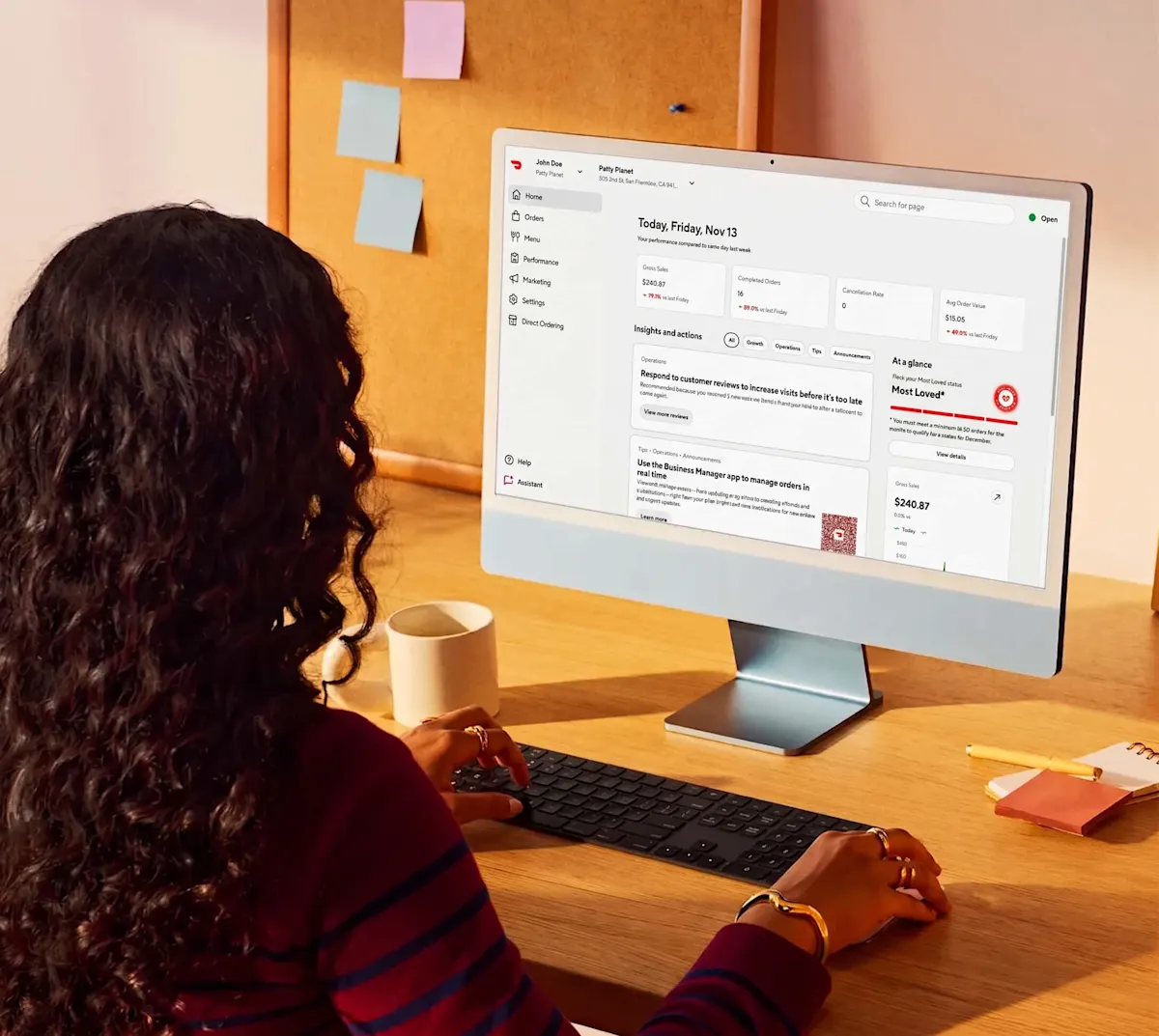
What is the Merchant Portal?
The Merchant Portal has everything you need, from reviewing financial statements to updating your store's information. In this article, we’ll start with your DoorDash homepage and then walk you through all the main sections of the Portal.
The Merchant Portal’s main menu runs down the left side of the screen. Each section is shown as an icon, and labels appear when you’re on Home. When you select a section, its pages open in a submenu to the right. To jump to a page quickly, use the search bar at the top of the portal. You can also check whether your store is open, and pause or resume orders using the store status button in the top-right corner of the header.
You can log in to the merchant portal directly or check out our guide, which includes how to give employees access.
Home
Once you’ve logged in to the Merchant Portal, your homepage gives you a snapshot of your business health. At the top, you’ll see your gross sales, completed orders, average order value, cancellation rate, and Most Loved tracker. Use the date and channel filters to change the time period, compare it to a previous period, or narrow results to specific channels. The homepage may vary based on your access and business.
If you have access to more than one DoorDash business, you’ll see a Select a profile screen after logging in. Choose the business you’d like to manage.
Below your key metrics, Priorities lists the most important actions for your store right now, such as items that need attention or suggestions to grow your sales. Select View all to see the full list.
Scroll down to see more about your business:
Business at a glance: Your sales over time, upcoming payouts, and ratings and reviews.
Operational health: Error charges, avoidable cancellation rate, downtime, and avoidable wait time, with a note on whether each is on track.
Inventory health: Items that have been out of stock and their estimated weekly lost sales.
Marketing: Your marketing sales and spend over time.
Added products: DoorDash products you’ve added, such as Capital, Bank Account, or Online Ordering. Select Add more products to explore others.
To go to another section, use the menu on the left-hand side of the Merchant Portal.
Switching between businesses and stores
Multi-Profile Access allows one email and password to access multiple DoorDash businesses. This means if you manage more than one store or brand, you can switch between them without logging out.
To switch businesses:
Select your name in the upper-left corner of the Merchant Portal.
Choose another business from the list. Each business shows your role and number of stores.
You’ll switch to that business’s dashboard.
To switch stores or go to the business view:
Open the store menu next to your name at the top of the portal.
Select a store from Your stores, or select View dashboard to go to the business view.

Multi-Profile Access is applied automatically when eligibility criteria are met — like when you're added to another business. No setup or action is required from you.
What does not change:
Your email and password remain the same
Reporting and data are not combined across businesses
Ownership, billing, and business structure stay separate
If you expect to see another business and it is not listed, please contact Support for assistance.
Orders

The Orders page lets you track and manage orders across channels and fulfillment types. Use the filters at the top to narrow orders by channel, order status, fulfillment status, or fulfillment type. Orders are sorted into:
Active: Orders you are currently fulfilling.
Scheduled: Orders that haven’t occurred yet, but were requested in advance by customers.
History: A list of all your past orders.
Request a delivery: If you have Drive On-Demand enabled, select Request a delivery at the top of the Orders page to schedule a Dasher to deliver an order. Enter the customer details and any order details your Dasher may need to pick up the order. Your staff can also use this to enter orders taken over the phone or catering orders.
You can learn more about viewing your orders in How to Find Customer Orders on the Merchant Portal. If you want to learn how to prevent order cancellations, head to How to Prevent Avoidable Cancellations.
Menu
This section is a central hub to manage your DoorDash menu.
Menu manager

The menu manager page is a central hub to manage your DoorDash menu.
In this section you can make DoorDash menu updates:
Edit items and descriptions: Change the product’s name, price, item description, and tax rate
Add modifiers: Add/Edit modifiers to existing items
Add photos: Add menu photography to your menu
Mark items out of stock: Temporarily mark an item as out of stock
Note:
If you have an integrated menu that requires an update, please connect with your Point of sale / middleware provider.
If you are a merchant that primarily sells convenience, grocery, or alcohol, please see Inventory manager below.
Menu pricing
Review How Menu Pricing Could Impact Your Sales and your business performance. If you have an integrated menu, please connect with your Point of sale / middleware provider.
Video library
The Video library page is where you can find and manage videos for your menu.
Inventory manager (only available for applicable businesses)
Note: The Inventory manager is only used by those selling primarily convenience, grocery, alcohol, or retail items.
The inventory manager page allows you to update prices for SKUs, set items status in-stock / out of stock, and add select Consumer packaged good SKUs. If your business is integrated with DoorDash, Inventory manager will be locked as the integration controls all stock availability and pricing updates.
Financials
Under Financials you can see Transactions, Payouts, and Statements.
Transactions
The Transactions page gives you insights into the total number of orders and estimated payout during a specific period of time.
Note: These are estimates to provide a snapshot of your business during a specific period of time.
Payouts
The Payouts page gives you the finalized payment data for your scheduled payouts and the finalized order level detail included in the payout. This should be the data used when you are conducting your regular financial reconciliation.
You can select a period of time from the drop-down menu to view your payouts.
Statements
The Statement page shows you monthly statements and other important forms based on your business’s location and activity.
Monthly statements are available by the 5th day of each month. To learn more about your Financial Statement, check out How to Understand Your DoorDash Payout and Monthly Statement.
Tax Invoices are based on your monthly DoorDash fees and available 10 days after the month ends. For more information log into your merchant portal. How to Understand Your Tax Invoice.
Tax Forms are your annual tax forms that show earnings and other business activity for the year and are available by January 31 for the previous year. For more information log into your merchant portal.
Monthly Subtotal tax breakdown
Performance
Under Performance, you’ll find Sales overview, Sales by item, Operations quality, Most Loved, Customer insights, Ratings & reviews, Local market insights, and Report exports.
Sales overview

The Sales overview page shows visualizations of Sales, Total orders, Average ticket size, and more.
Sales by item
The Sales by item page shows which menu items are driving your sales.
Operations quality

The Operations quality page shows details about the experience you’re providing your customers.
The first thing you’ll see is areas requiring your attention. These metrics show where there’s room for improvement. Scroll down to see areas on track.
In each of these sections, you’ll see how your store is performing on:
Wait time: Total amount of time Dashers wait for orders at your store.
Cancellations: Orders that were not prepared, picked up, or delivered.
Order accuracy: A measure of orders reported with missing or incorrect items.
Downtime: A measure of the amount of time delivery is unavailable during business hours.
Ratings: How customers have rated your store in their reviews.
Most Loved

Learn if you’re on track to qualify for the Most Loved program.
Customer insights

The Customer insights page shows an overview of your customers, including what percentage are New, Occasional, and Frequent. You can also see where your customers are located to get a feel for which neighborhoods are ordering from you.
Ratings & reviews

The Ratings & reviews page is where you can read and respond to customer reviews, and see your ratings for a specific time period or your lifetime rating.
If you want to learn more about viewing and improving your restaurant reviews, head over to our article on customer reviews.
Local market insights
The Local market insights page shows how your store compares with your local market.
Report exports

The Report exports page lets you create and manage reports for your business, including sales, operations, and financial data on DoorDash. You’ll see a summary of previously run reports.
To make a new report, choose Create report.
Head over to Make Strategic Business Decisions Using DoorDash Reporting to learn how to extract business insights from your sales data.
Marketing
Under Marketing you will see different pages where you can set up and track marketing campaigns; check out Marketing 101: How to Use Ads & Promos for more information.
Run a campaign
The Run a campaign page is where you can launch new ads and promotions, including campaigns recommended for your store.

Campaigns
The Campaigns page shows your campaign performance, including impressions, attributed sales, spend, and return on ad spend (ROAS). Use the filters to sort campaigns by status, objective, or date range. To start a new campaign, select Create campaign.
Loyalty

The loyalty page will show an overview of custom cohorts, sales performance, average spend, and more! A loyalty program on DoorDash encourages your DoorDash customers to keep coming back.
Loyalty customers spend more and order more often
Offering rewards strengthens brand reputation and helps you stand out against your competitors
Offering a loyalty program through DoorDash gives you more data to better tailor marketing campaigns for the most high-value customers
Settings
Under Settings, you’ll find Store availability, Manage users, Account settings, Pricing plans, Public info, Store communications, Bank account, Integrations, and Add solutions. Your access type may affect which settings you can see.
Store availability
The Store availability page allows you to check your store status, update store hours, or add special hours and closures.
Menu hours and store closures

You can have multiple menus in this section such as breakfast and lunch or an all-day menu and adjust the specific times for each, so customers can know what they can order and when.
You can also set specific times your business will operate during holidays or special events. Click Add new to add a closure date, or View history to see when you have closed in the past.
If you need to stop new orders right away, select Pause all ordering channels on this page, or use the store status button in the top-right corner of the portal header to pause or resume orders from anywhere.
Manage users

On the Manage users page, you can give your staff access by selecting + Add users, or edit an existing user by selecting their name. To view or change what each role can do, go to the Roles tab. Read our article on logging in to the Merchant Portal to find out more.
Account settings

Enable auto-generated menu descriptions
Create or manage a PIN for Tablet access
Add Dasher pickup instructions that all Dashers can see when picking up orders or dynamic instructions for different times of the day or certain days of the week. You can also add Customer pickup instructions.
Opt into daily payouts
Set menu pickup and delivery rate (if applicable)
Add a store tax rate (if applicable)
Pricing plans

Here you can see your current DoorDash plan, including your delivery commission, pickup commission, and DashPass participation, plus what’s included in your plan and recent plan activity.
Select Compare plans to see other options, or Request plan change to switch plans. If your plan is set at the business level, store-level users will see a read-only summary.
Public info

On the Public info page, you can add your store name, address, phone number, website, and description. You can also add brand assets, such as your logo, header photo, and header video, and connect your Instagram account to feature content on DoorDash.
Here you can find out more about setting up your store.
Store communications

Here you can choose who receives alerts, reports, and notices about your store, and how they receive them: by email, SMS, or WhatsApp. Each recipient can be subscribed to different notification categories, such as operational alerts, store deactivations, performance reports, business notices, legal notices, commission and plan notices, and marketing communications.
To manage your notifications:
In the Merchant Portal, go to Settings > Store communications.
Select Add recipient to add an email address or phone number.
Check or uncheck the categories each recipient should receive.
Select Edit cadence next to a category to change how often it’s sent.
If you’d like to learn more about using DoorDash marketing to help increase your sales, check out Marketing 101: How to Use Ads & Promos.
Bank account

On the Bank account page, you’ll find a summary of your banking information, including your bank, account, payout cadence, and next payout. Bank details are managed at the business level, so you’ll need to be in the business view to update information such as:
Company name
Bank account details
Representative
Note: banking information will vary depending on your region.
Integrations

On the Integrations page, you can manage the devices, point of sale (POS) systems, and commerce platforms connected to your store. Pair a tablet or printer, check sync status, or select Connect integration to add a new one.
Add solutions

In Settings > Add solutions, the Solutions center shows all the ways DoorDash can help you increase sales and grow your business.
The suite puts restaurants’ needs first, and was built as a direct result of listening to partner feedback. Whether you want to Grow Online, Attract New Customers, Increase Order Size & Volume, and more – you can easily identify and access the unique set of DoorDash tools that can help you achieve your goals and succeed off-premise.
To learn more about specific options, head over to How to grow with the Merchant Suite.
DoorDash Direct
Under DoorDash Direct, you can track orders that come in through your own commission-free ordering channels.
Overview
The Overview page shows your direct sales, total orders, and average ticket size for the time period and stores you select. You’ll also see where your orders came from, such as your ordering link or Order with Google, and a customer snapshot comparing new and returning customers. Select Create report to export this data.
Growth packages
The Growth packages page shows add-ons that can help you grow your direct sales.
Dispatcher tool POS
If your business uses DoorDash’s dispatcher tools, select Dispatcher tool POS in the menu.
Help and Assistant
Help and the Assistant are in the bottom-left corner of the Merchant Portal.
Select the ? icon to get help with the Merchant Portal.
Select the Assistant icon to ask questions about your store and get help with tasks, such as analyzing your sales or updating menu prices. You can minimize the Assistant while you work.