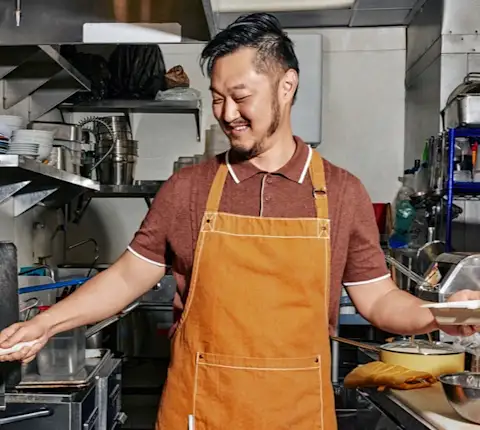
Paper tickets pile up on the line while delivery orders flood a separate tablet. A kitchen display system (KDS) replaces both with one kitchen screen. The software shows orders from your point-of-sale (POS) system and online ordering platforms as soon as customers place them. Kitchen staff track, update, and clear each order from the digital screen.
According to the National Restaurant Association, just over half of operators (52%) plan to invest in tech that boosts kitchen productivity. This guide explains how a KDS works, the main types, costs, and how delivery orders reach your kitchen screens.
This article is for educational purposes only and does not constitute financial or business advice. Consult an accountant or financial advisor before making major equipment purchases or investing in restaurant technology.
What is a KDS? The short answer
A kitchen display system is software that shows orders on kitchen screens in place of paper tickets or kitchen printers.
Orders flow from your POS and online ordering platforms straight to the right kitchen stations.
A KDS system can help improve order accuracy, shorten ticket times, and organize your kitchen workflow during rushes.
Delivery orders reach the screen through a POS integration or middleware, a service that links delivery apps to your POS.
Total cost depends on software fees, screens, mounts, setup, and staff training time.
Before you buy, confirm the KDS works with your POS and can display your delivery orders.
What is a KDS (kitchen display system)?
If your kitchen operations still rely on paper tickets, a KDS replaces the printer and ticket rail with a screen. The KDS is the software. It runs on a touchscreen, such as an Android tablet or a kitchen-grade monitor built to withstand heat and grease.
Your point-of-sale (POS) system is the software and hardware your team uses to take orders, process payments, and track sales. The KDS sits between the POS and your cooks. It receives each order from the POS and displays it for the kitchen. You keep your POS, and the KDS gives your kitchen its own view of every order.
What does KDS stand for?
KDS stands for kitchen display system. People also search “what does KDS mean in business” or “KDS restaurant,” and both refer to the same tool. In restaurants, the term covers the screens and the software that organize kitchen orders.
KDS vs. kitchen printers and paper tickets
Switching from printed tickets to digital tickets changes how kitchen staff read and track orders. Here’s how the two compare:
Comparison area | Paper tickets and kitchen printers | Kitchen display system (KDS) |
|---|---|---|
How orders arrive | Printed on thermal paper and clipped to a rail, where slips can fall, smudge, or go missing. | Displayed on a digital screen with clear order details and timestamps. |
Edits and modifiers | Servers write changes by hand or call them out across a noisy line. | Shows modifiers (changes to a menu item, like “no onions”), special requests, and allergy notes on the item line. |
Tracking wait times | Cooks check printed times by eye during a rush. | Timers and color changes show how long each order has waited. |
Multiple order channels | Dine-in, phone, and delivery orders can print on separate slips or arrive on separate devices. | Dine-in, takeout, and delivery orders can share one queue. |
Data afterward | None once the ticket hits the trash. | Can track ticket times, prep times, and speed of service by station. |
Ongoing supplies | Thermal paper rolls and ink ribbons to restock. | No paper or ink to restock. |
How does a KDS work?
Every order follows the same path, whether it starts at the counter or on a delivery app:
An order comes in. A guest orders in person, on your website, or through mobile apps.
The POS receives it. Your point of sale logs the order and sends it to the kitchen.
The KDS routes each item. The software sends each item to its assigned kitchen station, such as the grill or fryer.
Cooks see timers and color cues. Each ticket shows a timer and changes color as wait time grows, so cooks know which order comes next.
Staff bump the order. When a dish is ready, cooks “bump” it to clear it from the screen. They tap the touchscreen or press a bump bar, a small keypad for clearing orders on non-touch screens.
Expo confirms the handoff. The expo station is where staff check finished dishes before they go out. An order-ready screen can also tell guests or delivery drivers when food is ready. The KDS then saves the ticket data, including cook times and order status.
Key KDS features to know
KDS vendors describe their features with a shared set of terms. The table below defines the most common, so you can compare systems with confidence.
Feature | What it does | Why it helps your kitchen |
|---|---|---|
Station routing | Sends each menu item to the right kitchen station, like the grill, fryer, or cold prep. | Each cook sees only their own items, which keeps the line focused. |
Ticket timers and color-coded aging | Changes a ticket’s color, often from green to yellow to red, as wait time grows. | Cooks can spot late orders at a glance. |
Bump and recall | Clears finished orders and lets staff bring back an order they cleared by mistake. | Keeps screens uncluttered without losing orders. |
Modifier and allergy highlights | Flags changes, special requests, and allergy notes in bold text or color. | Keeps screens uncluttered without losing orders. |
Coursing and meal pacing | Times each course so all of a table’s dishes are ready together. | Helps full-service restaurants send out each course hot and on schedule. |
Customer-facing order-ready screens | Shows order numbers or names on a lobby screen when food is ready. | Helps quick-service restaurants reduce counter crowding and keep guests informed. |
Reporting | Tracks ticket times, preparation time by station, and peak ordering hours. | Shows where the line slows down, so you can adjust staffing or your menu. |
Features vary by system. Write down the ones your kitchen needs before you talk to vendors.
Benefits of a kitchen display system for your restaurant
Fewer order mistakes and remakes
Handwritten notes, smudged ink, and lost slips can all send the wrong dish to a table. A KDS shows each order exactly as entered, with modifiers highlighted. Cooks can avoid misreading tickets, and servers no longer need to re-key orders. That can lead to fewer comps (free items given to make up for a mistake) and voids (orders canceled in the POS after an error). Fewer remakes can also reduce food waste.
Faster ticket times during the rush
When orders stack up, cooks have to decide what to make first. Timers show how long each ticket has waited, and station routing gives each cook only their items. With a clear view of what needs attention next, your team can improve speed of service during peak hours.
One queue for every order channel
Dine-in, takeout, and delivery orders can arrive through different printers and tablets. A KDS can bring them into one queue on one screen. Your team works from a single list of orders instead of switching between devices.
Smoother handoffs between front and back of house
Your front of house (FOH) includes hosts, servers, and cashiers. Your back of house (BOH) includes cooks, prep staff, and dishwashers. Digital tickets with real-time updates help both teams track order status without shouting across the kitchen. With some systems, front-of-house staff can check an order’s progress right from their own screen. Simple, visual tickets also make it easier to train new or seasonal kitchen staff.
Kitchen data you can act on
Ticket times by station show where your kitchen slows down. Prep times by item reveal slow-moving dishes that hold up the line. Like other restaurant technology, a KDS gives you data to adjust staffing, rework your station layout, or simplify your menu.
Types of kitchen display systems
The right setup depends on your restaurant’s size, order volume, and budget.
Type | How it works | Best for | Trade-offs |
|---|---|---|---|
KDS bundled with your POS | Comes as an add-on from your POS provider. | Small restaurants that want a simple setup and one vendor for support. | Fewer customization options than standalone software. |
Standalone KDS software | Separate software that connects to many POS brands through integrations. | Operators who want advanced routing or may switch POS providers later. | One more vendor and subscription to manage. |
Tablet-based KDS | Runs a KDS app on tablets, such as an Android tablet, mounted in protective cases. | Food trucks, cafes, and quick-service restaurants with modest order volume and tight budgets. | Lower upfront cost, but consumer tablets are less heat-resistant and less durable. |
Dedicated kitchen-grade hardware | Uses heavy-duty touchscreens built to resist heat, grease, and moisture. | High-volume kitchens and multi-location operations with long shifts. | Higher upfront cost. |
Cloud-based systems sync orders over the internet, while on-site systems run on a local server in your restaurant. If you choose a cloud-based system, ask whether it includes an offline mode. Offline mode keeps in-house orders moving between your POS and kitchen screens if the internet drops mid-service.
How to get delivery and online orders onto your KDS
A separate delivery tablet forces staff to re-key orders or watch two screens during a rush. That setup is common: 40% of operators run their core operations on four to five separate systems. Operators name extra training (39%), more complexity and errors (36%), and manual data entry between tools (34%) as the biggest costs. Online ordering and delivery tops the list of systems they most want to unify, at 58% (*based on the 2026 DoorDash Restaurant Industry Trends Report).
Your order protocol is the way DoorDash sends orders to your restaurant. You can choose from three options:
POS integration: Orders go straight into your POS and can print automatically in the kitchen. DoorDash recommends this option for most merchants. Once orders are in the POS, your KDS can display them too.
Middleware: A connector service that links delivery platforms to your POS when there’s no direct integration.
Tablet: This option is a good fit if you don’t have a POS, or if yours can’t be integrated.
One queue can help your kitchen keep pace with incoming orders and avoid cancellations. Merchants who avoid order cancellations in the first month see, on average, 50% more sales than other merchants (based on internal DoorDash data from 5/1/2025 to 5/1/2026). If you also take orders on your own website, Direct Ordering, part of DoorDash Direct, sends them to the same place as your Marketplace orders, whether that’s your POS or a DoorDash Tablet.
How much does a KDS cost?
KDS pricing varies by vendor and setup. Plan for these costs:
Cost component | What drives the price |
|---|---|
Software subscription | Some vendors charge a monthly fee per screen. Others include the KDS in certain POS plans. |
Screens | Consumer tablets cost less upfront. Kitchen-grade monitors cost more but last longer in heat and grease. |
Mounts and bump bars | Wall brackets, protective cases, and bump bars add to your hardware total. |
Installation and setup | Some vendors charge for configuration, network cabling, and menu setup. |
Integration or middleware fees | Connecting delivery apps, or a POS without a direct integration, may add setup or monthly fees. |
Staff training time | Your team spends paid hours learning the new system. |
Ask each vendor for a full quote that lists hardware, setup, and monthly fees.
Is a KDS worth it for your restaurant?
Return on investment (ROI) compares what you gain with what you spend. For a KDS, ROI depends on your order volume and how complex your kitchen is. A KDS may suit your restaurant if you have:
Two or more ordering channels, such as dine-in and delivery
Several cooking stations
Frequent lost or misread tickets during rushes
Growing delivery volume
High staff turnover that slows training
Labor shortages add to the case for automation. Nearly half of operators (47%) expect restaurants to adopt more technology and automation to deal with the labor shortage, the National Restaurant Association found.
A KDS may not pay off yet if you run a small menu with one cook who sees every order. To measure the payoff after setup, track remakes, comps, ticket times, and delivery cancellations before and after you switch.
How to choose the right KDS for your restaurant
Use these criteria to compare systems before you sign up.
Works with your POS and delivery orders. Confirm the KDS connects to your POS and displays orders from a POS integration. If you’re still shopping for a POS, look for one that supports both.
Easy for new staff. Pick an interface a new cook can learn during their first shift.
Built for kitchen conditions. Choose hardware made to withstand heat, grease, and frequent cleaning.
Customizable layouts. Look for adjustable font sizes and station views that match your line.
Useful reporting. Choose reports you’ll review often, like ticket times by station, to keep improving kitchen efficiency.
Offline mode and support. Confirm the system keeps running if the internet drops and that support is available during your service hours.
Room to grow. Make sure you can add stations or locations without switching systems.
Fill your queue with new customers through DoorDash Marketplace
With paper tickets and the separate tablet gone, your kitchen is ready for more orders. If you’re new to DoorDash, list your restaurant on DoorDash Marketplace, the app where customers discover local businesses. Close to 30% of orders received by small business restaurants in 2025 came from new consumers (*based on internal DoorDash data from Jan 2025 - December 2025).
Already on Marketplace? Connect a POS integration so Marketplace orders land on your KDS beside dine-in tickets, with delivery by Dashers, through DoorDash.
Get Started with DoorDash Marketplace