What are Promotions and how do they work?
Promotions give customers more reasons to order from your business, with options like discounts, free delivery, or buy one, get one free.
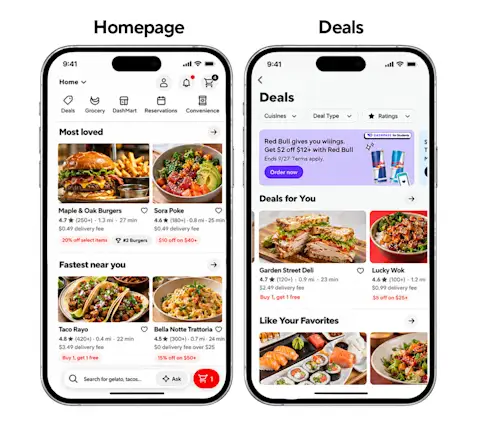
When you run a promotion, your business will receive a promotion badge, and eligible promotions can be featured on the homepage and Deals section of the DoorDash app.
What types of Promotions can I run?
Order discounts
Spend x, get y gives customers a discount on their entire order when it meets a minimum subtotal, like 20% off orders over $30. It's a simple way to encourage customers to order, or to add more to their cart.
Item promotions
Buy one, get one free lets customers buy an item and get the same item for free.
Free or discounted items let you offer specific items for free or at a discount, rather than discounting the entire order. For both, you choose which items are included.
Free delivery
Free delivery covers your customer's delivery fee when they meet a minimum subtotal.
Happy Hour and Lunch specials
Both order discounts and item promotions come in Happy Hour and Lunch special versions, so you can run promotions at the times of day that matter most to your business.
What are the benefits of Promotions?
Make every promotion worth it
Customize your promotion so your budget goes toward what your business needs most. Plus, automatically receive a promotion badge and get featured in the Deals section of DoorDash to help more customers discover your business and increase sales.
Run promotions for every scenario
Target new, existing, and lapsed customers, choose specific days and times, and pick from multiple promotion types, including order discounts, free or discounted items, buy one, get one free, and free delivery.
Grow your DoorDash sales
Encourage customers to order more and spend more per order with promotions that give them more reasons to choose you. See how Mendocino Farms' Spend $40, Get $8 promotion earned $10 in sales for every $1 spent.
When should I use Promotions?
You want to attract new customers. Give first-time customers a reason to try your business, like free delivery on their first order.
You want to bring back lapsed customers. Use a targeted promotion to give customers who haven't ordered in a while another reason to come back.
You want customers to spend more per order. A Spend x, get y promotion encourages customers to add a little more to reach the minimum.
You want to fill quieter times of day. Happy Hour and Lunch specials help you bring in orders at the times you choose.
You want to spotlight specific items. Use buy one, get one free or free or discounted items to feature your best sellers or introduce something new.
See Promotions in action
Fiorella, an Italian restaurant with four locations in San Francisco, runs a mix of promotions on DoorDash, including free delivery for first-time customers and a buy one, get one free margherita pizza. Since November 2024, its first-order free delivery promotion has brought in 2,688 new customers and $145,000 in sales, and 26% of those new customers have come back to order again.
"We're doing a BOGO [buy one, get one] margherita pizza promotion that absolutely crushes it."
How to create a promotion on DoorDash
You can create a promotion from the Marketing section of your Merchant Portal. All your settings are on one page, with a preview of your promotion and sales and cost estimates beside them.
1. Choose your promotion type
Go to Marketing > Run a campaign. Select the card for the kind of promotion you want (Item promotion, Order discount, or Free delivery) and select Create promo.

2. Set your promotion
Choose your promotion details, like 20% off orders over $30. Depending on the promotion type, you can set a percentage or dollar amount off, a minimum order subtotal, and a maximum discount amount. For item promotions, select the items you want to include.

3. Choose your stores and audience
Select the stores where you want to run your promotion, then choose your audience. If you're running a Spend x, get y promotion, we recommend Smart Targeting to reach the customers most valuable to your business.

4. Set your duration and schedule
Choose when your promotion starts, whether it ends on a set date or keeps going, and which days and times customers can use the promotion.
5. Set your average weekly budget, where applicable
Some promotion types let you set an average weekly budget. Where available, we recommend No cap on average weekly budget to maximize potential orders. As you adjust your settings, you may also see estimates such as weekly costs, sales, return on ad spend, or cost per order, depending on the promotion type.
6. Name and create your campaign
Add a campaign name and review your settings. When you're ready, select Create campaign.
How to track your promotion performance
Go to Marketing > Campaigns to see results for all your campaigns, then select your promotion to see how it's doing. Your results tell a simple story: customers place orders using your promotion, those orders add up to sales, and your return on ad spend shows what you earned for what you spent.
Performance
Once your promotion is live, go to Marketing in your Merchant Portal to track:
Orders: See how many orders came from your promotion.
Campaign sales and spend: See how much you earned in sales from your promotion and how much you spent.
Return on ad spend (ROAS): See how much you earned in sales for every $1 spent on your promotion.

Reorder rate
See how often customers reorder from you after they place an order using your promotion. Reorder rate is available after 30 days of campaign activity, and you can view it for new or lapsed customers.

Long-term value
See how much customers spend after they place an order using your promotion. The chart compares what it cost to bring in each customer with how much they've spent with you over 30, 60, and 90 days.

Get started with Promotions
Ready to give customers another reason to order? Create a promotion in your Merchant Portal.